> ## Documentation Index
> Fetch the complete documentation index at: https://docs.bithuman.io/llms.txt
> Use this file to discover all available pages before exploring further.
# Quick Start
> Learn how to quickly set up and integrate bitHuman SDK into your application.
# Quick Start Guide
bitHuman SDK enables you to build interactive agents that respond realistically to audio input. This guide covers installation instructions, a hands-on example, and an overview of the core API features.
## Installation
### System Requirements
**Supported Python Versions:**
* Python 3.10
* Python 3.11
* Python 3.12
* Python 3.13
**Supported Operating Systems:**
* Linux (x86\_64 and arm64)
* macOS (Apple Silicon)
### Install `bithuman`
```bash
pip install bithuman
```
## Agent Model Setup
To run the example, you'll need to obtain the necessary credentials and models from the bitHuman platform. Follow these steps:
1. Login to [bitHuman Platform](https://console.bithuman.io)
2. Click the "Developer settings" button in the top-right corner of the page
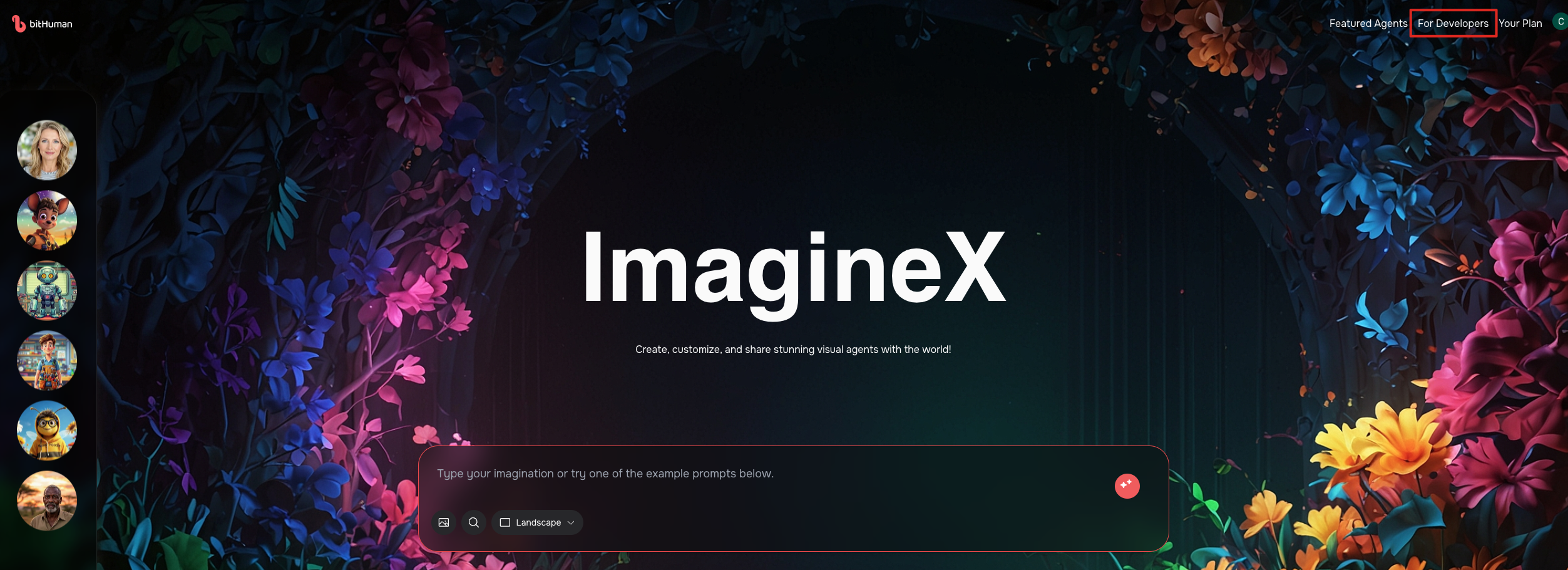
1. In the Developer Settings page, navigate to the "API Secrets" section in the left sidebar
2. Click the "Reveal" button to view your API secret

We provide several pre-trained models that you can use directly:
* **Einstein**: [Download](https://repo.one.bithuman.io/resources/rt_models/samples/albert_einstein.imx)
* **Companion**: [Download](https://repo.one.bithuman.io/resources/rt_models/samples/dating_coach.imx)
* **Dog**: [Download](https://repo.one.bithuman.io/resources/rt_models/samples/dog.imx)
These demo models are ready to use immediately after downloading.
1. If the agent shows "Create Model" button, click it first
2. Wait approximately 3 minutes for the model to be created
3. Once ready, click the "Download Model" button to get your .imx file
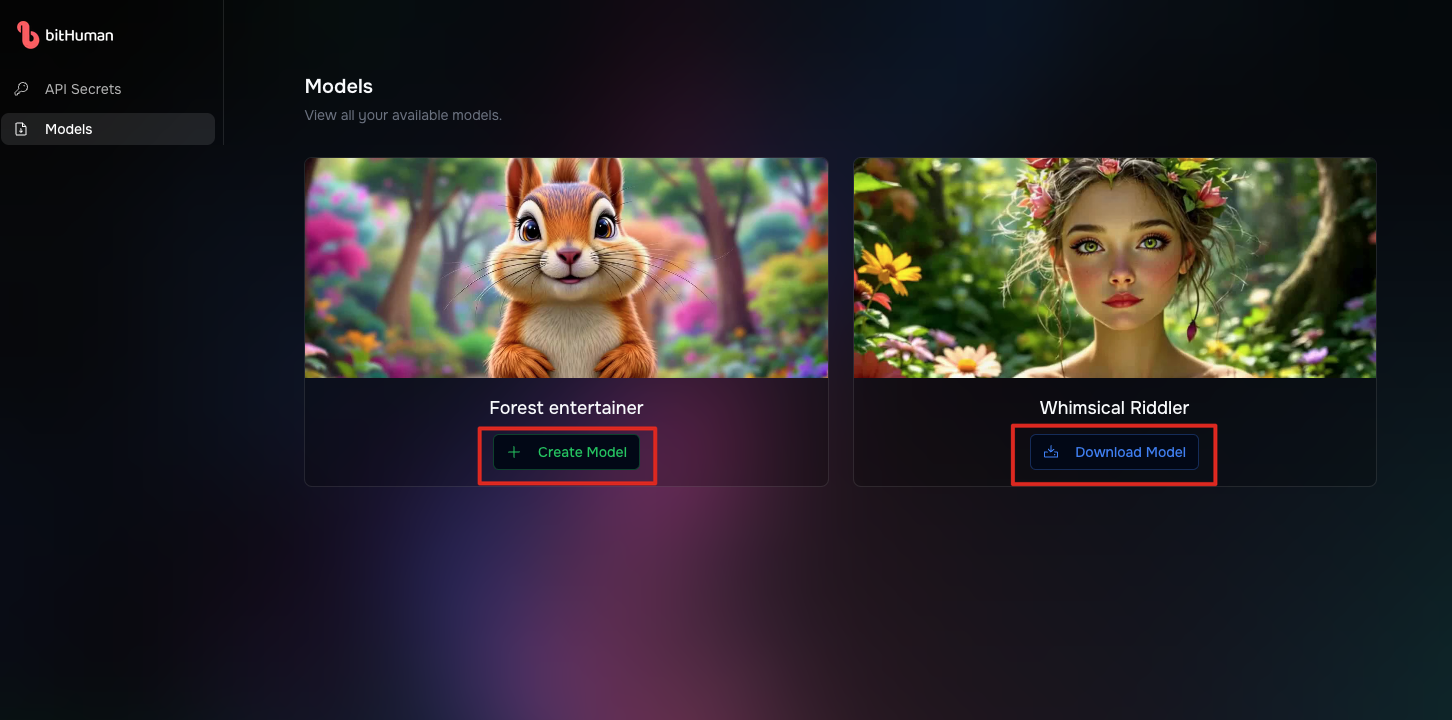
Model creation takes about 3 minutes. You'll see the "Download Model" button once it's ready.
## Examples Overview
### 1. LiveKit Agent
Run a visual agent using bitHuman for visual rendering, OpenAI Realtime API for voice-to-voice and LiveKit for orchestration.
Make sure to add OPENAI\_API\_KEY for voice response, and to run a LiveKit room with webrtc, add LIVEKIT\_API\_KEY to your .env file.
```bash
# Run locally
python livekit_agent/agent_local.py
# Run in a LiveKit room
python livekit_agent/agent_webrtc.py dev
```
### 2. LiveKit WebRTC Integration
Stream a bitHuman avatar to a LiveKit room using WebRTC, while controlling the avatar's speech through a WebSocket interface.
```bash
# Start the server
python livekit_webrtc/bithuman_server.py --room test
# Send audio to the avatar
python livekit_webrtc/websocket_client.py stream /path/audio.wav
```
### 3. Avatar Echo
Basic example that captures audio from your microphone, processes it with the bitHuman SDK, and displays the animated avatar in a local window.
```bash
python avatar/echo.py
```
### 4. FastRTC
Run a LiveKit agent with FastRTC WebRTC implementation:
```bash
python fastrtc/fastrtc_example.py
```
## How It Works
This example covers the following steps:
1. Initializing bitHuman SDK using your API token
2. Configuring audio and video playback
3. Processing audio input and rendering the agent's reactions
4. Managing user interactions
The agent animates in sync with the audio input, providing a realistic interactive experience.
## API Overview
bitHuman SDK offers a straightforward yet powerful API for creating interactive agents.
### Core API Components
#### `AsyncBithuman`
Main class to interact with bitHuman services.
```python
runtime = await AsyncBithuman.create(
model_path="path/to/model.imx",
api_secret="your_api_secret",
)
```
* You can authenticate using an API secret
* Load and manage models
* Process audio input to animate the agent
* Interrupt ongoing speech using `runtime.interrupt()`
#### `AudioChunk`
Represents audio data for processing.
* Supports 16kHz, mono, int16 audio format
* Compatible with bytes and numpy arrays
* Provides utilities for duration and format conversions
#### `VideoFrame`
Represents visual output data from sdk.
* Contains image data in BGR format (numpy array)
* Includes synchronized audio chunks
* Provides frame metadata such as frame index and message ID
## Input/Output Flow
### Input
* Send audio data (16kHz, mono, int16 format) into the sdk
* SDK processes this input to generate corresponding agent animations
### Processing
* SDK analyzes audio to produce natural character movements and expressions
* Frames generated at 25 FPS synchronized with audio playback
### Output
* Each frame includes visual data (BGR image) and corresponding audio chunk
* Demonstrates real-time frame rendering and audio playback